Support
Excel Add-in Support
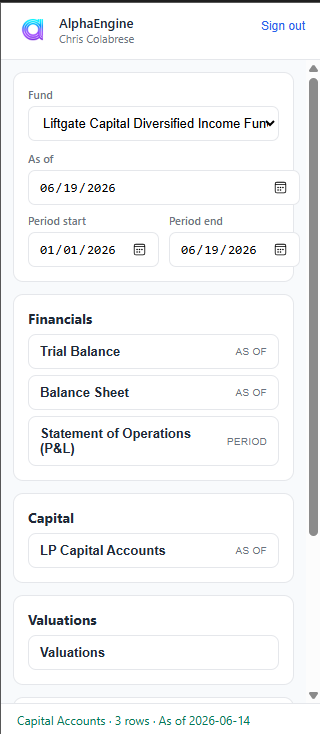
This page covers installation, sign-in, and troubleshooting for the Privatis Excel add-in — the task pane that pulls fund data into Excel and books approved valuation marks back to Privatis.
Before you start
- An active Privatis user account with permission to access the relevant fund(s)
- Microsoft Excel (Microsoft 365 desktop, Excel on the web, or supported Excel for Mac)
- Network access to https://alphaengine.co
- For production use, your administrator should provide
manifest.prod.xmlfrom the deployment package
Install the add-in
Excel on the web (recommended for testing)
- Open a workbook at excel.office.com
- Go to Home → Add-ins → More Add-ins → My Add-ins
- Choose Upload My Add-in and upload the manifest file from your administrator
- Open the Privatis button on the Home tab to launch the task pane
Excel desktop (Windows)
Your IT team may deploy the add-in through a shared folder catalog or Microsoft 365 centralized deployment. Contact your Privatis administrator for the correct manifest and catalog path.
Excel desktop (Mac)
Sideload by placing the manifest in ~/Library/Containers/com.microsoft.Excel/Data/Documents/wef/ per Microsoft's sideloading documentation, then restart Excel.
Sign in
- Open the Privatis task pane from the Home tab
- Enter your Privatis email and password, or use Google / Microsoft SSO if your organization enabled it
- Select the fund and data set you want to refresh (financials, capital accounts, valuations, portfolio)
The add-in stores a session token in the task pane so you stay signed in. Use Sign out on shared machines. Authentication is handled by the same Privatis backend as the web application.
Common tasks
- Refresh fund data — choose a fund and period, then pull tables into the active worksheet
- Book a valuation mark — available only if your role and fund workflow allow posting marks from Excel
- Test connection — use the connection test in the pane to verify Excel can write to the active cell
Troubleshooting
The task pane is blank or won't load
- Confirm you can open https://alphaengine.co/excel-addin/ in a browser while signed in to the same network
- Disable aggressive ad blockers or privacy extensions for
alphaengine.co - Try Excel on the web to isolate desktop certificate or policy issues
- Ask IT to allow
https://alphaengine.coand Microsoft Office add-in domains
Sign-in fails or session expires quickly
- Verify your account is active and you have fund access in the web app
- Clear the add-in storage by signing out and back in
- Ensure your organization's SSO / MFA policies allow Office add-in sign-in
Data refresh errors
- Confirm you selected the correct fund and reporting period
- Check that your role includes read access to the underlying module (fund accounting, valuations, etc.)
- Retry after a few minutes — large pulls may time out on slow connections
Cannot post a valuation mark
- Posting requires explicit permission; contact your fund administrator
- Period close or approval locks may block new marks — check the fund in Privatis
Local development (IT / engineering only)
Developers sideloading against localhost must use HTTPS dev certificates and point the add-in at a backend whose CORS policy allows the dev origin. Production users should use the hosted pane at https://alphaengine.co/excel-addin/ (same-origin with the API).
Privacy and terms
Contact support
For add-in issues, include your organization name, Excel version (desktop vs web), browser if applicable, screenshots of any error message, and the approximate time the error occurred.
Email: [email protected]
Phone: (860) 419-5259
Hours: Business days, U.S. Eastern Time — we aim to respond within one business day
For general platform help (not specific to Excel), visit Platform Support.